If you would like to download the images from more than 1000 URLs, here is the excel macro to download all the images at one go.
The macro will automatically download all the jpg files from the given urls.
Macro Code:
Private Declare Function URLDownloadToFile Lib "urlmon" _
Alias "URLDownloadToFileA" (ByVal pCaller As Long, _
ByVal szURL As String, ByVal szFileName As String, _
ByVal dwReserved As Long, ByVal lpfnCB As Long) As Long
Public Function DownloadURLtoFile(sSourceURL As String, _
sLocalFileName As String) As Boolean
DownloadURLtoFile = URLDownloadToFile(0&, _
sSourceURL, sLocalFileName, &H10, 0&) = 0&
End Function
Sub DownLoadPics()
Dim cell As Range, rngListOfURL As Range
PTH = Cells(2, 4)
Set rngListOfURL = Sheet1.Range("A2:A1354")
For Each cell In rngListOfURL
If DownloadURLtoFile(cell.Value, PTH & cell.Offset(, 1).Value & ".jpg") Then
cell.Offset(, 2).Value = "Successfully downloaded"
Else
cell.Offset(, 2).Value = "Error - no download"
End If
Next cell
End Sub
Showing posts with label create macro. Show all posts
Showing posts with label create macro. Show all posts
Friday, February 17, 2012

Monday, January 23, 2012
Record a simple Macro
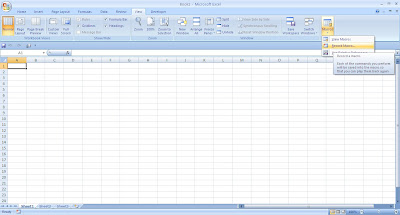
The simple way to start learning macro is "Record Macro" To record a macro in excel 2007 follow this path:
View -> Macros -> Record Macro
Then a new window opens with required specification like Macro name, Shortcut key, store macro in, Description
Note:
The Macro name should not conatin any blanks spaces or any special characters
For shortcut key, avoid usual shortcut keys like Ctrl+v, Ctrl+v etc.,
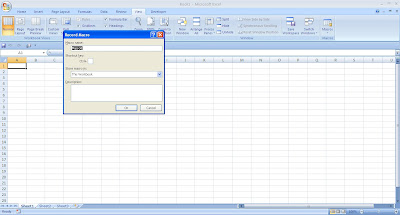
Once you clicked OK the macro start to record all your activities that you are doing in that excel. To stop the record, again go to views_> Macro-> Stop recording
View -> Macros -> Record Macro

Then a new window opens with required specification like Macro name, Shortcut key, store macro in, Description
Note:
The Macro name should not conatin any blanks spaces or any special characters
For shortcut key, avoid usual shortcut keys like Ctrl+v, Ctrl+v etc.,

Once you clicked OK the macro start to record all your activities that you are doing in that excel. To stop the record, again go to views_> Macro-> Stop recording
Subscribe to:
Posts (Atom)